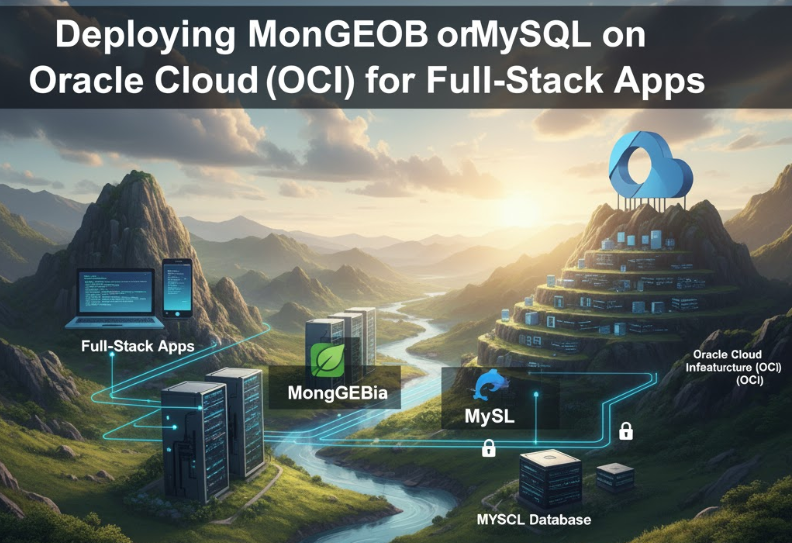
Deploying MongoDB or MySQL on Oracle Cloud (OCI) for Full-Stack Apps
🧭 Overview
Every full-stack application needs a database layer to store data.
In our previous parts, we deployed the Node.js backend and React.js frontend on Oracle Cloud Infrastructure (OCI).
Now, we’ll focus on deploying the database — either MongoDB (NoSQL) or MySQL (relational) — so that your application becomes fully functional.
This guide will walk you through:
- Installing MongoDB or MySQL on your OCI instance
- Securing database access with users, passwords, and firewalls
- Connecting your Node.js backend to the database
- Managing backups and performance
By the end, you’ll have a complete, production-ready full-stack environment — all hosted on OCI Free Tier resources.
☁️ Step 1: Decide Between MongoDB and MySQL
Before deploying, choose which database suits your stack.
| Feature | MongoDB | MySQL |
|---|---|---|
| Type | NoSQL (Document-based) | SQL (Relational) |
| Best For | Dynamic, JSON-like data (e.g. APIs, apps) | Structured, transactional systems |
| Query Language | MongoDB Query Language (MQL) | SQL |
| Scalability | High (sharding, replication) | Moderate (replication, clustering) |
| Integration | Excellent with Node.js (Mongoose) | Excellent with Express, Sequelize, Prisma |
In short:
- Choose MongoDB if your backend uses Mongoose or deals with flexible data.
- Choose MySQL if your app needs structured schemas or uses ORM frameworks like Sequelize or Prisma.
⚙️ Step 2: Prepare Your Oracle Cloud Instance
If your OCI compute instance (Ubuntu) is not yet set up, follow these prerequisites:
sudo apt update && sudo apt upgrade -yThen install essential packages:
sudo apt install wget curl gnupg -yYou can host both your Node.js app and database on the same VM (for small projects) or on separate instances for better performance.
🍃 Step 3: Installing MongoDB on OCI (Option 1)
🔹 Add MongoDB Repository
curl -fsSL https://pgp.mongodb.com/server-7.0.asc | sudo gpg -o /usr/share/keyrings/mongodb-server-7.0.gpg --dearmor
echo "deb [ signed-by=/usr/share/keyrings/mongodb-server-7.0.gpg ] https://repo.mongodb.org/apt/ubuntu jammy/mongodb-org/7.0 multiverse" | sudo tee /etc/apt/sources.list.d/mongodb-org-7.0.list
🔹 Install MongoDB
sudo apt update
sudo apt install -y mongodb-org
🔹 Enable and Start MongoDB
sudo systemctl enable mongod
sudo systemctl start mongod
sudo systemctl status mongod
You should see:
Active: active (running)🔹 Verify Mongo Shell
mongosh🧰 Configure MongoDB for External Access (Optional)
By default, MongoDB only listens to localhost.
If your backend runs on another instance, you’ll need to edit the configuration:
sudo nano /etc/mongod.confFind:
bindIp: 127.0.0.1Replace with:
bindIp: 0.0.0.0Restart MongoDB:
sudo systemctl restart mongodThen open port 27017 in OCI Security List:
- Port: 27017
- Protocol: TCP
- Source CIDR: your backend IP or
0.0.0.0/0(for testing only)
⚠️ Never leave MongoDB open publicly without authentication or firewall rules.
Secure MongoDB with User Authentication
Enter the Mongo shell:
mongosh
Run:
use admin
db.createUser({ user: "appuser", pwd: "StrongPassword123", roles: ["root"] })
Enable authentication:
sudo nano /etc/mongod.confUncomment:
security:
  authorization: enabled
Restart MongoDB:
sudo systemctl restart mongodNow you can connect securely:
mongodb://appuser:StrongPassword123@<oci-public-ip>:27017/mydatabaseStep 4: Installing MySQL on OCI (Option 2)
🔹 Install MySQL Server
sudo apt install mysql-server -y
sudo systemctl enable mysql
sudo systemctl start mysql
Check status:
sudo systemctl status mysql🔹 Secure MySQL Installation
sudo mysql_secure_installationFollow prompts to:
- Set a strong root password
- Remove anonymous users
- Disable remote root login
- Remove test database
🔹 Create Application Database and User
sudo mysql -u root -pThen inside MySQL shell:
CREATE DATABASE appdb;
CREATE USER 'appuser'@'%' IDENTIFIED BY 'StrongPassword123';
GRANT ALL PRIVILEGES ON appdb.* TO 'appuser'@'%';
FLUSH PRIVILEGES;
EXIT;
🔹 Allow Remote Connections
Edit the MySQL config:
sudo nano /etc/mysql/mysql.conf.d/mysqld.cnfFind:
bind-address = 127.0.0.1Replace with:
bind-address = 0.0.0.0Restart MySQL:
sudo systemctl restart mysqlThen open port 3306 in OCI Security List.
🔗 Step 5: Connect Node.js Backend to MongoDB or MySQL
🔹 Example: MongoDB (Mongoose)
import mongoose from 'mongoose';

mongoose.connect('mongodb://appuser:StrongPassword123@<oci-ip>:27017/mydatabase')
  .then(() => console.log('MongoDB Connected'))
  .catch(err => console.error('MongoDB Connection Error:', err));
🔹 Example: MySQL (Sequelize)
import { Sequelize } from 'sequelize';

const db = new Sequelize('appdb', 'appuser', 'StrongPassword123', {
  host: '<oci-ip>',
  dialect: 'mysql'
});

db.authenticate()
  .then(() => console.log('MySQL Connected'))
  .catch(err => console.error('MySQL Error:', err));
🧠 Step 6: Backup & Maintenance
Backup MongoDB
mongodump --out /home/ubuntu/mongobackup/Backup MySQL
mysqldump -u root -p appdb > /home/ubuntu/appdb_backup.sqlYou can automate backups with cron:
sudo crontab -eAdd:
0 2 * * * /usr/bin/mysqldump -u root -pYourPass appdb > /home/ubuntu/appdb_backup.sqlStep 7: Performance & Monitoring Tips
- Use indexes to speed up queries.
- Enable PM2 metrics for backend performance.
- Use OCI Monitoring Dashboard to track CPU, memory, and disk usage.
- Regularly rotate passwords and enforce TLS for database connections.
- For larger projects, consider OCI Autonomous Database (MySQL or PostgreSQL) — managed, free-tier compatible, and scalable.
✅ Summary
You’ve now learned how to:
- Install and configure MongoDB or MySQL on Oracle Cloud
- Secure both databases for production use
- Connect them to your Node.js backend
- Set up firewalls, authentication, and backups
Your full-stack app is now 100% self-hosted on OCI — frontend, backend, and database all under your control.
This setup is fast, free-tier friendly, and enterprise-ready.